


Start by confirming your smart switch or dimmer works with Alexa, Google Home, or HomeKit, and check whether it needs Wi‑Fi, Z-Wave, a neutral wire, or a 3-way setup. Turn off the breaker, verify wires are dead, and match the device to your load and dimmable LEDs. Install it with the right tools, restore power, then pair it in the app and test control. Next, you’ll uncover the finer setup details.
Check Smart Switch Compatibility
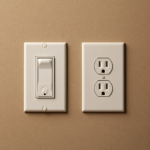
Before you buy a smart switch, make sure it’s compatible with your home’s ecosystem, wiring, and lighting setup. Confirm that it works with Alexa, Google Home, or Apple HomeKit, and verify whether it uses Wi‑Fi or a hub-based standard like Z-Wave. Next, inspect your switch box: many Smart switch models need a neutral wire, so use a voltage tester to ensure the circuit is de-energized before you open the box. Check that you need a single-pole or 3-way unit, depending on how you control the light. Match the switch’s amperage and dimming rating to your load, and use dimmable LED bulbs if you’re installing a dimmer. Finally, confirm the wall opening fits a Decora-style device and plate.
Plan Your Layout and Wiring
Map your layout first by measuring the wall and ceiling area, counting how many switches control each light group, and choosing switch locations that won’t block access to wiring or pathways. Next, inspect each existing switch box and confirm it has hot, neutral, and ground conductors for smart switches and dimmers. Match the control type to the circuit: use single-pole for one location, or 3-way smart wiring for two-location control at hallways or stairs. Verify breaker labels and lighting load, especially LED wattage limits, to avoid flicker or early failure. Check ceiling joists and other obstructions so the device and Decora-style faceplate mount cleanly. Plan wire connections carefully before you cut, splice, or relocate anything, and keep every layout decision focused on safe, efficient, future-ready automation.
Gather Tools and Safety Gear
Gather a flathead and Phillips screwdriver, a non-contact voltage tester, wire strippers/cutters, wire connectors, electrical tape, a flashlight, and a ladder so you’re ready for the install. Turn off the circuit breaker first, then verify the switch wires aren’t live before you touch any conductors. Wear eye protection and avoid wet areas while you work inside the switch box.
Essential Tools Checklist
To work safely and avoid wiring mistakes, assemble your tools and safety gear first: a non-contact voltage tester, flathead and Phillips screwdrivers, wire strippers/cutters, and a utility knife if your conductors need trimming or stripping to fit the smart switch terminals. Add wire connectors, wire nuts, or lever-nut/Wago splices, plus electrical tape, so you can secure hot, neutral, and ground conductors cleanly. Keep a ladder and flashlight nearby for clear access inside the switch box or ceiling space. Use the voltage tester to verify conductor status before you handle anything, then label each wire to prevent mix-ups during your smart home upgrade. With the right tools in reach, you’ll install faster, reduce errors, and prep your lighting system for reliable, innovative control.
Safety Gear And Power Off
Before you touch any wiring, switch off the breaker for the circuit you’re replacing and verify the power is dead with a non-contact voltage tester, such as a Fluke 1AC. Turn off the power, then Use a voltage tester on the switch wires again before you loosen anything. Keep a screwdriver set, wire strippers, electrical tape, and wire connectors within reach so you can work efficiently on the smart switch without interruptions. A flashlight and sturdy ladder improve visibility and access, reducing errors when you remove the old device. Handle conductors only after the tester confirms zero voltage. If you see damaged insulation, corroded terminals, or can’t identify neutral, hot, or ground, stop immediately and call a qualified electrician before proceeding.
Install the Smart Switch or Dimmer
Once the breaker is off, verify the wires are truly dead with a non-contact voltage tester before you touch anything in the switch box. Confirm your smart switch or dimmer needs a neutral wire, and label hot, neutral, and ground so each conductor lands on the correct terminal. Strip only the needed length with a wire cutter/stripper, then follow the manufacturer’s diagram and secure connections with the included wire nuts or Wago lever-nuts. Seat the device in the box, fit the Decora wall plate, and tighten it evenly. Restore power and test manual on/off and dimming. If you’re building a smart switch control for Google routines, keep the wiring precise now, because a wrong load or loose splice can stop reliable operation later.
Pair the Device in the App
Open the manufacturer’s app, sign in, and make sure your switch or dimmer is in pairing mode before you continue. In the app, tap Add device or Set up new light, then select your exact device type so the setup flow matches the hardware. Follow the pairing prompts carefully, keep your phone close, and connect to the correct Wi‑Fi band when the app requests it.
Open The App
Download the smart switch or dimmer manufacturer’s app from the App Store or Google Play, create your account, and launch the app to begin setup. After you open the app, tap Add device or Set Up Smart to start pairing. If prompted, choose the correct device class, then scan the QR code on the unit. If your model doesn’t offer scanning, use search for nearby devices or select it from the list. Put the switch or dimmer in pairing mode first, following the label or manual exactly. Keep your phone on the same Wi‑Fi network throughout the process to avoid failed connections. Complete each on-screen prompt carefully until the device shows connected and ready for room or group control, confirming a safe, stable setup for your smart lighting system.
Select Device Type
- Scan the QR code, or use nearby-device search.
- Connect your phone to home Wi‑Fi.
- Select the right room and device category.
- Confirm on/off and brightness controls after setup.
This precise setup helps schedules, voice control, and automation work safely and reliably. If the app requests setup details, enter them now so future commands map to the right light and you avoid misconfigured dimming behavior.
Follow Pairing Prompts
Now follow the app’s pairing prompts to add the smart switch or dimmer: tap Add device or Set up new light or switch, choose the correct device type, and keep your phone close while you put the unit into pairing mode using its power-cycle sequence or pairing button. Stay on the same home network, usually Wi‑Fi, so the app can detect the device reliably. Then follow the on-screen prompts to confirm it appears in nearby-device results or by scanning the QR code if your app supports it. Keep the switch powered and nearby until setup finishes, then assign it to the correct room or group. If the app offers voice assistant integration, enable it now for secure, streamlined control across your connected lighting system.
Set Up Voice Control and Automations
- Check pairing status before automation
- Use 2.4 GHz if required
- Set lights to turn set schedules
- Add sunrise or sunset routines
If commands fail, restart the router, update firmware, and improve signal with an extender. Safe, reliable control keeps your installation efficient.
Frequently Asked Questions
Do I Need a Hub for My Smart Switch?
No, you don’t always need a hub for your smart switch; it depends on compatibility requirements and the protocol you choose. You can use Wi-Fi models, while Zigbee or Z-Wave setups usually need a hub. Check your smart switch wiring for neutral wire needs and load limits before installation. If you want flexibility, explore hub alternatives like Matter controllers or bridge-free switches that connect directly to your network.
Can Smart Dimmers Work With LED Bulbs?
Yes, smart dimmers can work with LED bulbs, but you’ve got to check compatibility limits first. You’ll want the right dimmer types, because some LEDs flicker, buzz, or won’t fully turn off. Verify wiring requirements, especially neutral-wire needs and load minimums, before installation. You should match the dimmer to dimmable LEDs for safe, smooth, smart control. Precision prevents problems, and proper pairing powers performance.
What if My Wall Box Is Too Shallow?
If your wall box is too shallow, you’ll need a shallow retrofit solution or a deeper box before installing the device. Check wiring depth carefully, because cramped conductors can overheat or prevent proper fit. You can use alternative mounting options, like a surface-mount enclosure, if code allows. Always shut off power, verify clearance, and confirm the smart dimmer’s depth rating before you proceed with the installation.
How Do I Reset the Switch After Setup?
To reset the switch after setup, hold the reset button for 10–15 seconds until the LED flashes, then release it. You’ll complete the factory reset steps, power-cycle the breaker if needed, and start pairing reattempts in your app. Check the app confirmation check to verify the device appears online and responds safely. If it doesn’t, repeat once, then inspect wiring and line/load orientation before retrying.
Can One Smart Switch Control Multiple Lights?
Yes—if your smart switch supports multi load control, you can run several lights from one device. Like a conductor guiding an orchestra, you’ll need proper switch compatibility and the right wiring path. Verify two way wiring, load limits, and neutral requirements before connecting anything. You shouldn’t exceed the rated wattage, and you’ll want to isolate circuits first. For safest results, follow the manufacturer’s diagram or hire a qualified electrician.
Conclusion
You’ve now got the basics to upgrade your lighting safely and cleanly. If you’ve heard smart switches always need a neutral wire, check your setup first—many newer models don’t. That theory matters because compatibility drives everything from wiring to app pairing. When you verify the circuit, follow the instructions, and test the load, you reduce risk and improve performance. Finish by naming your rooms, then fine-tune automations so your lights respond exactly when you need them.


